1

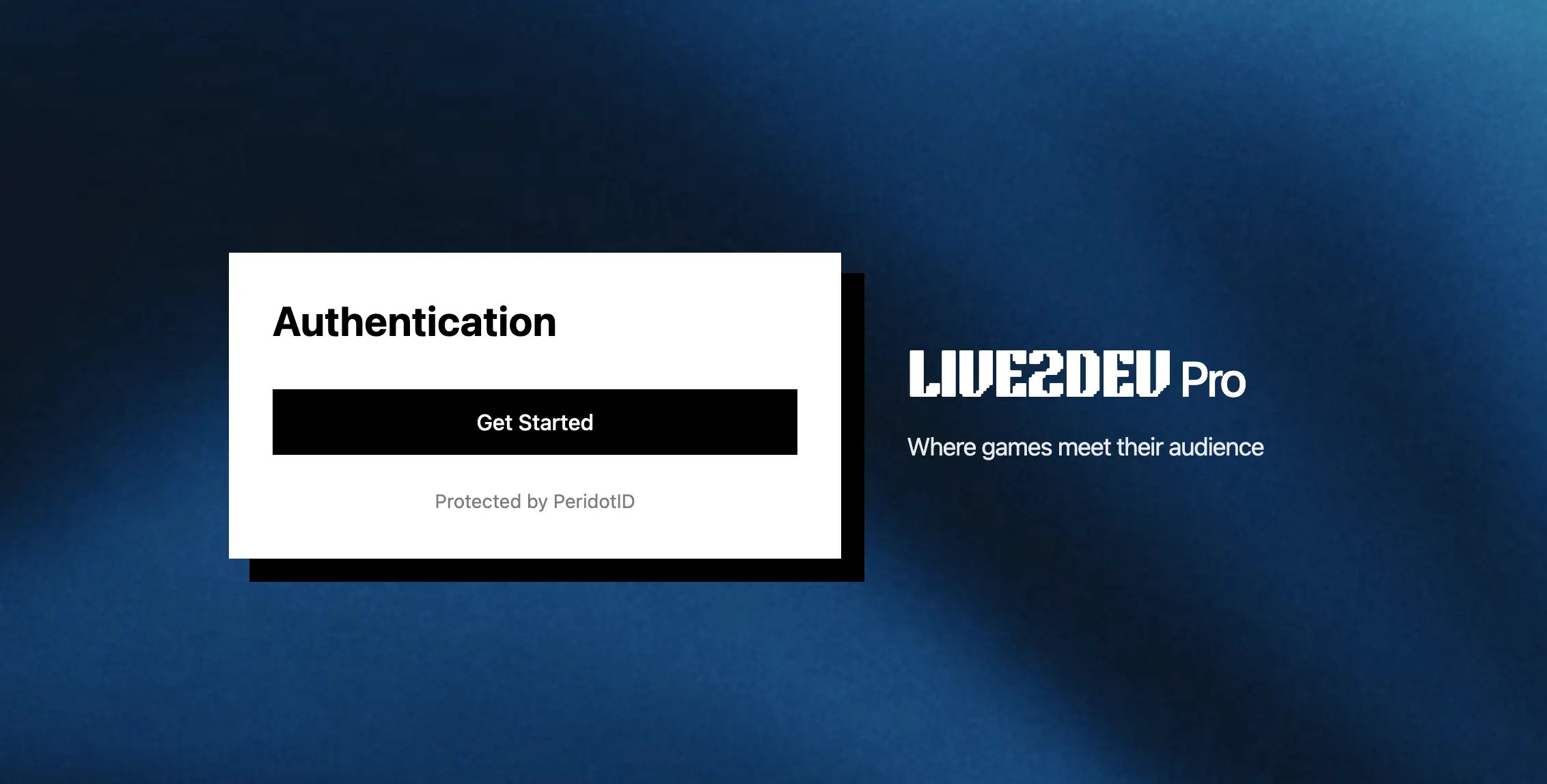
Open the auth page

Authentication page with Get Started
button Open pro.live2dev.com/auth and click Get Started on the Authentication card.
2

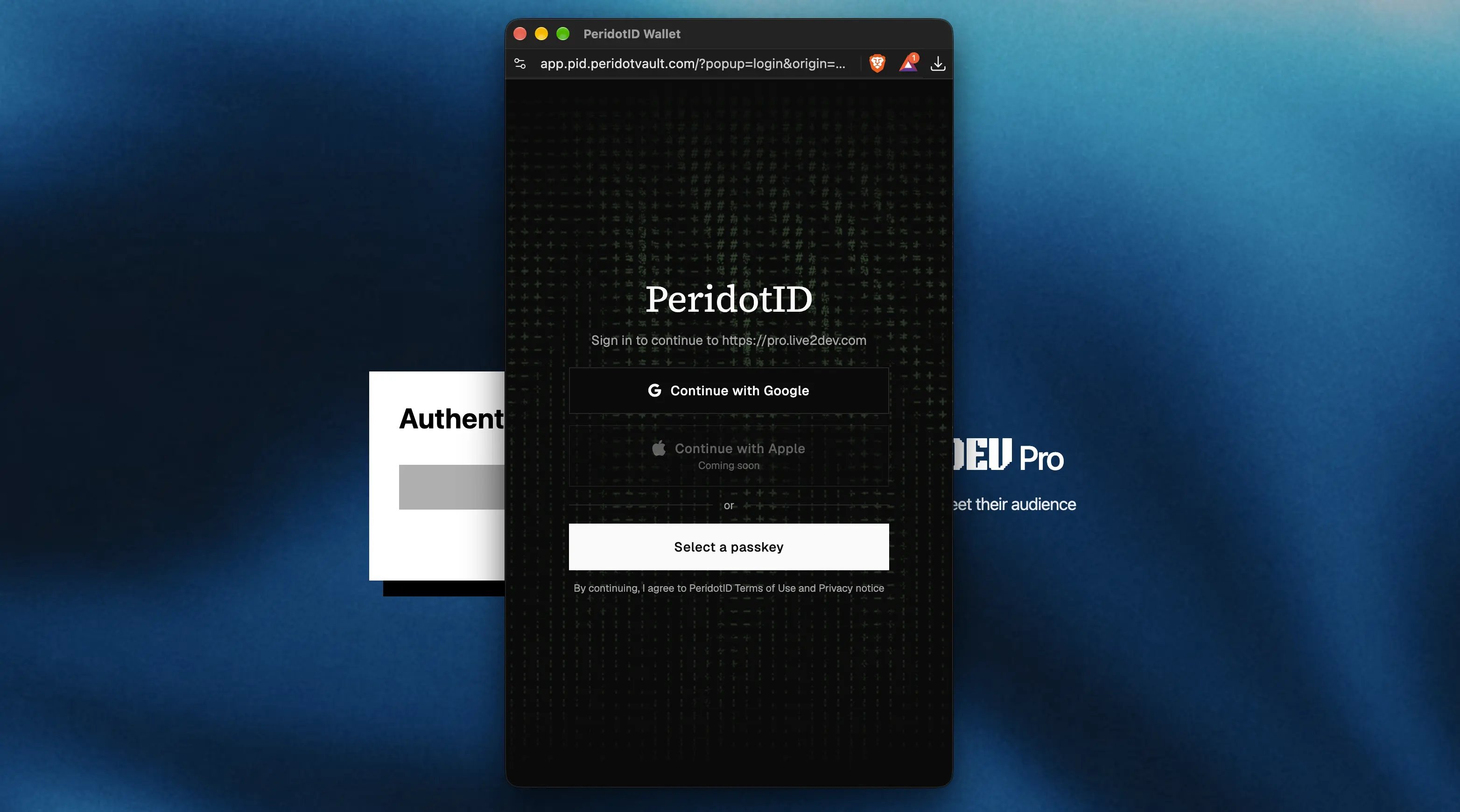
Log in with PeridotID

PeridotID login
popup A PeridotID popup opens — log in with the provider of your choice. The page is protected by PeridotID.
3

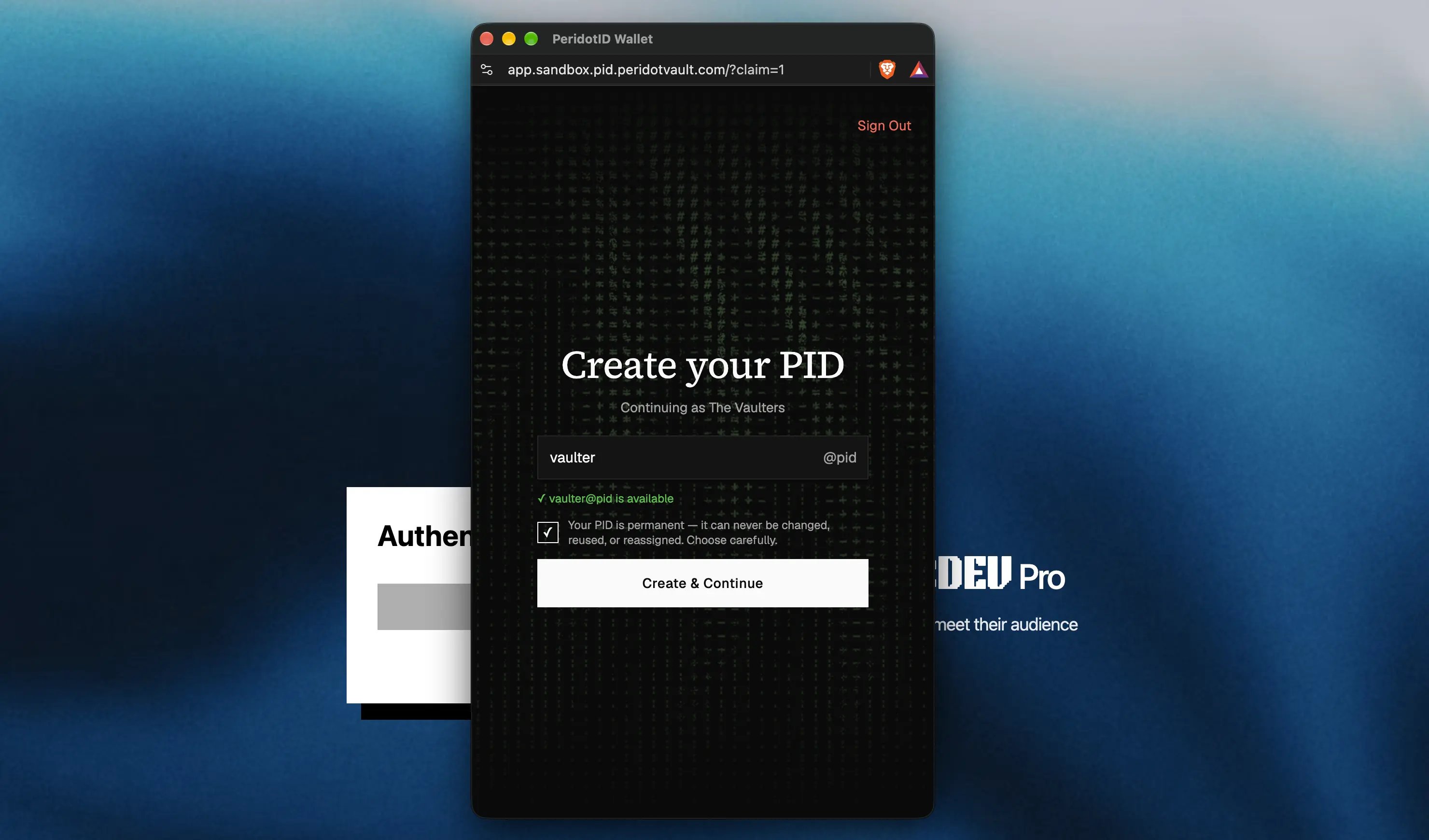
Create your PID if needed

Create PID screen If you do not have an account yet, create a PID. A PID cannot be changed once created, so double-check before confirming.
4

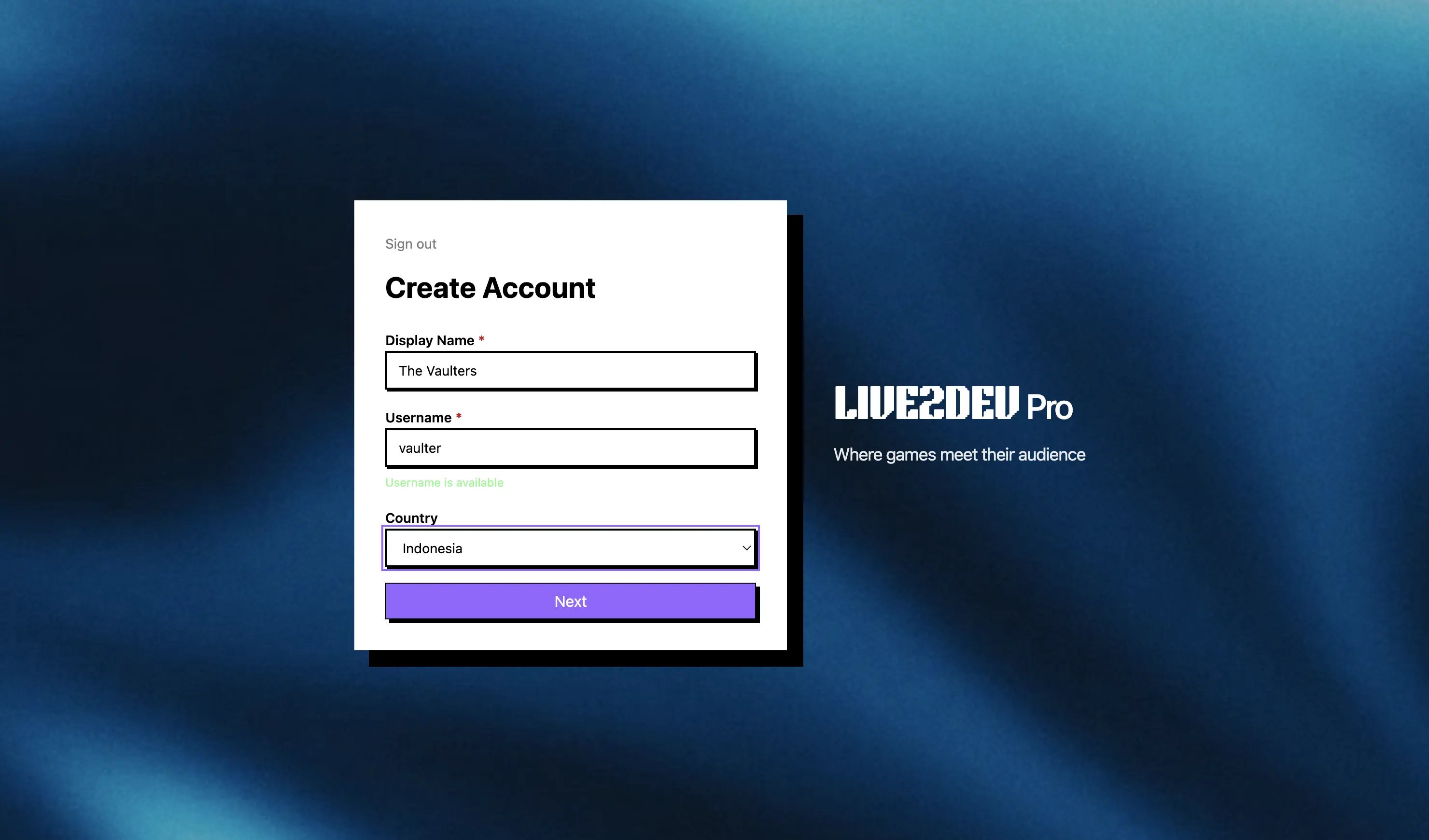
Create your live2dev account

Create Account
form Fill in the Create Account form: Display Name, username (availability is checked as you type), and Country.
5

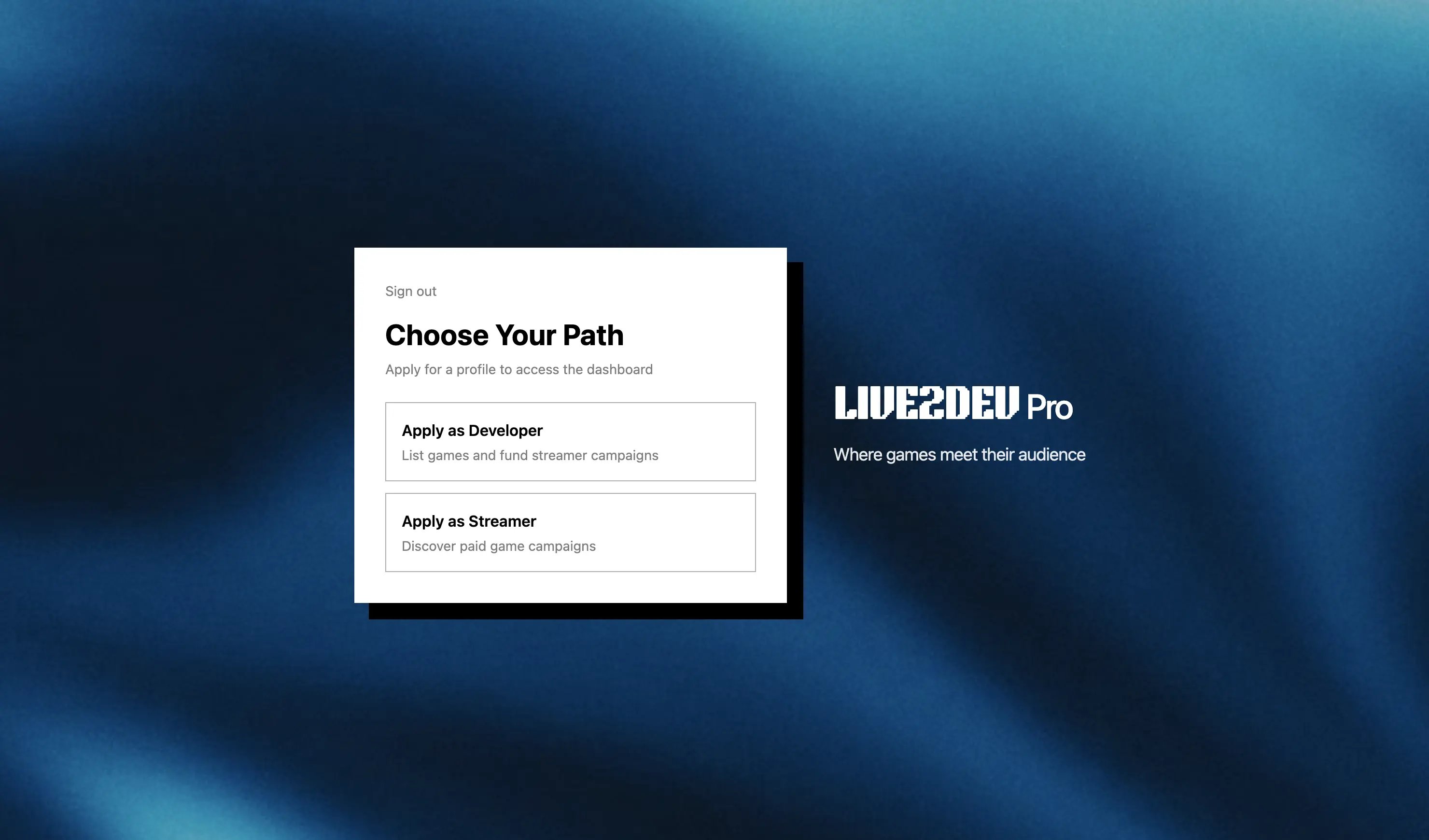
Choose the developer path

Choose Your Path
screen On Choose Your Path, click Apply as Developer. If your account is whitelisted, you instead see You’re Invited — click Create Developer Profile and skip the application.
6

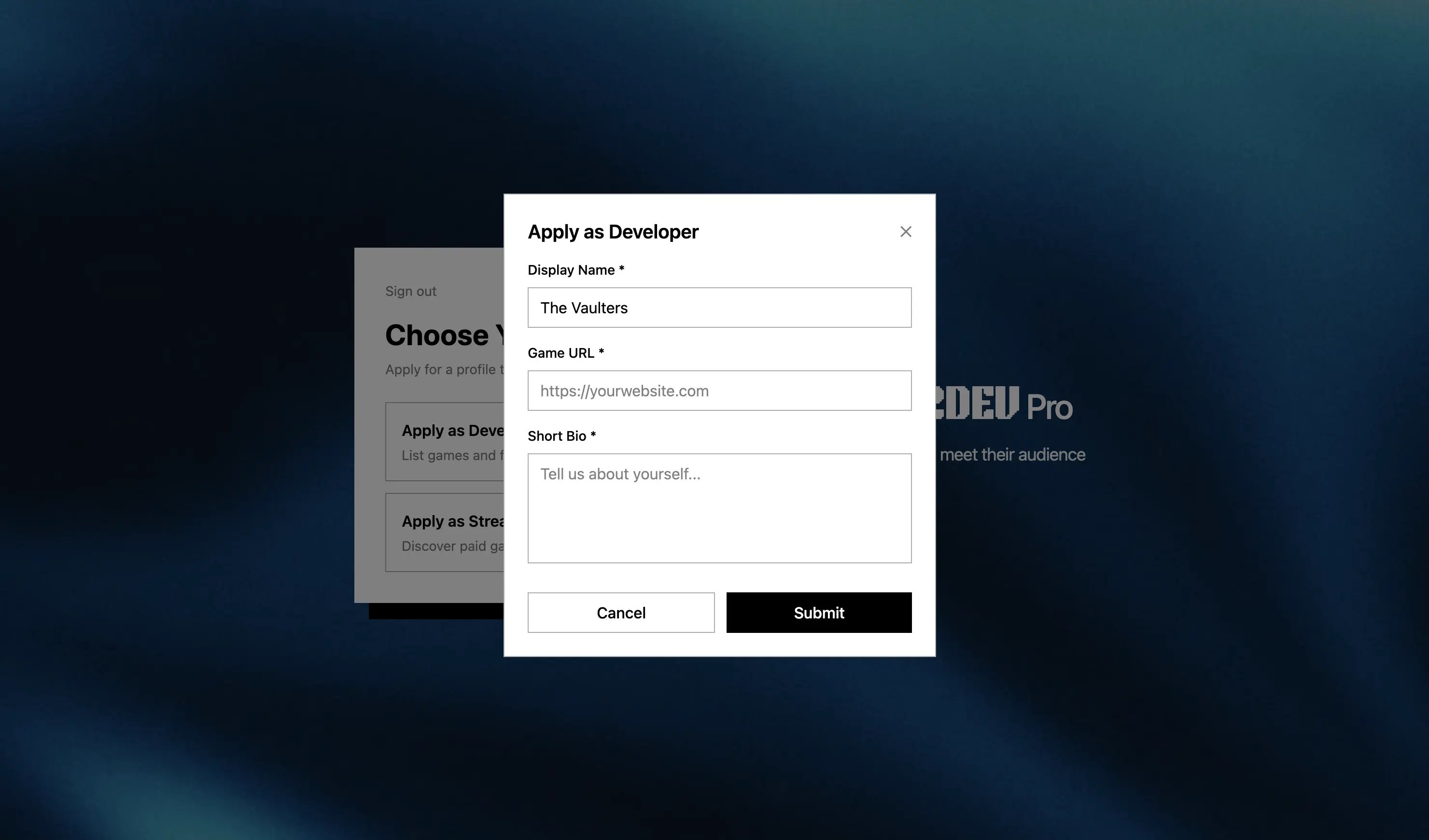
Fill in the developer form

Apply as Developer
form In the Apply as Developer dialog, fill in Display Name, Game URL, and Short Bio, then click Submit.
7

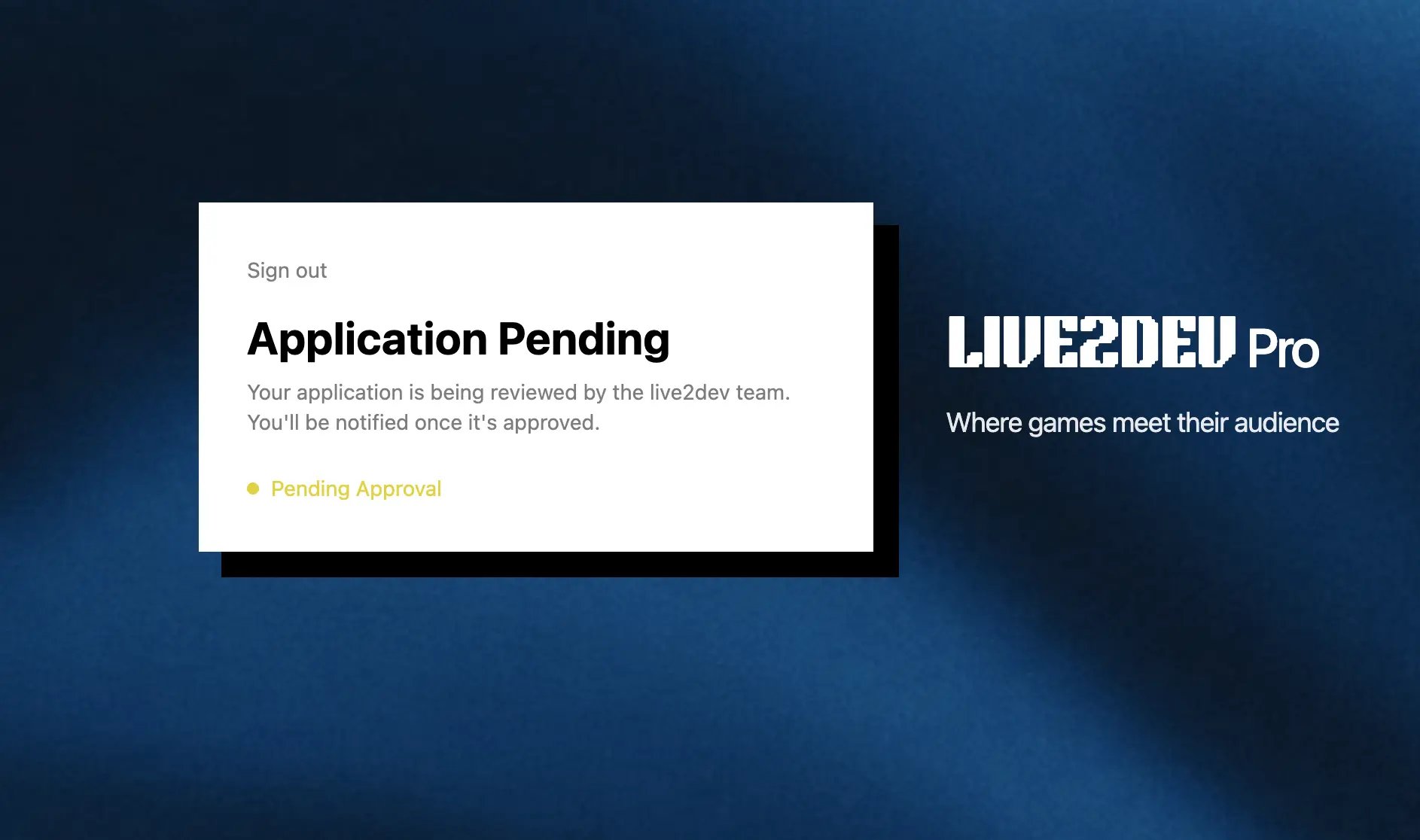
Wait for admin validation

Application Pending
screen You land on Application Pending — your application is being reviewed by the live2dev team and you will be notified once it is approved. You do not need to do anything while you wait.
Next, list your game in Create a game.