You edit games from your developer dashboard.
1

Hover your game card
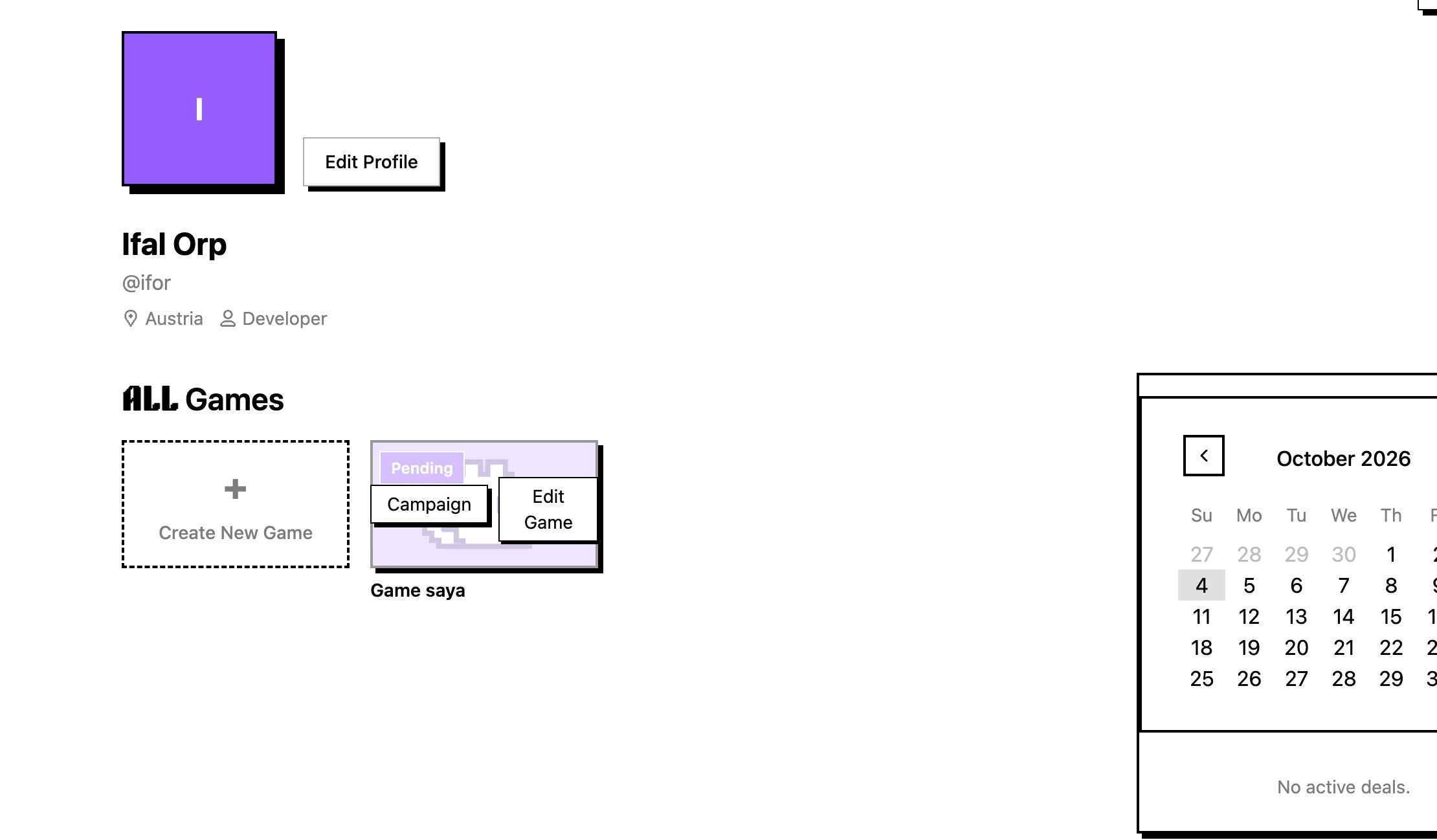
Hover the game card and choose edit gameOpen pro.live2dev.com/dashboard → hover your game card, then choose edit game. This opens Game Information at pro.live2dev.com/dashboard/edit-game/. The sidebar also shows Campaign and Delete Game, plus Back to Dashboard at the top.
2

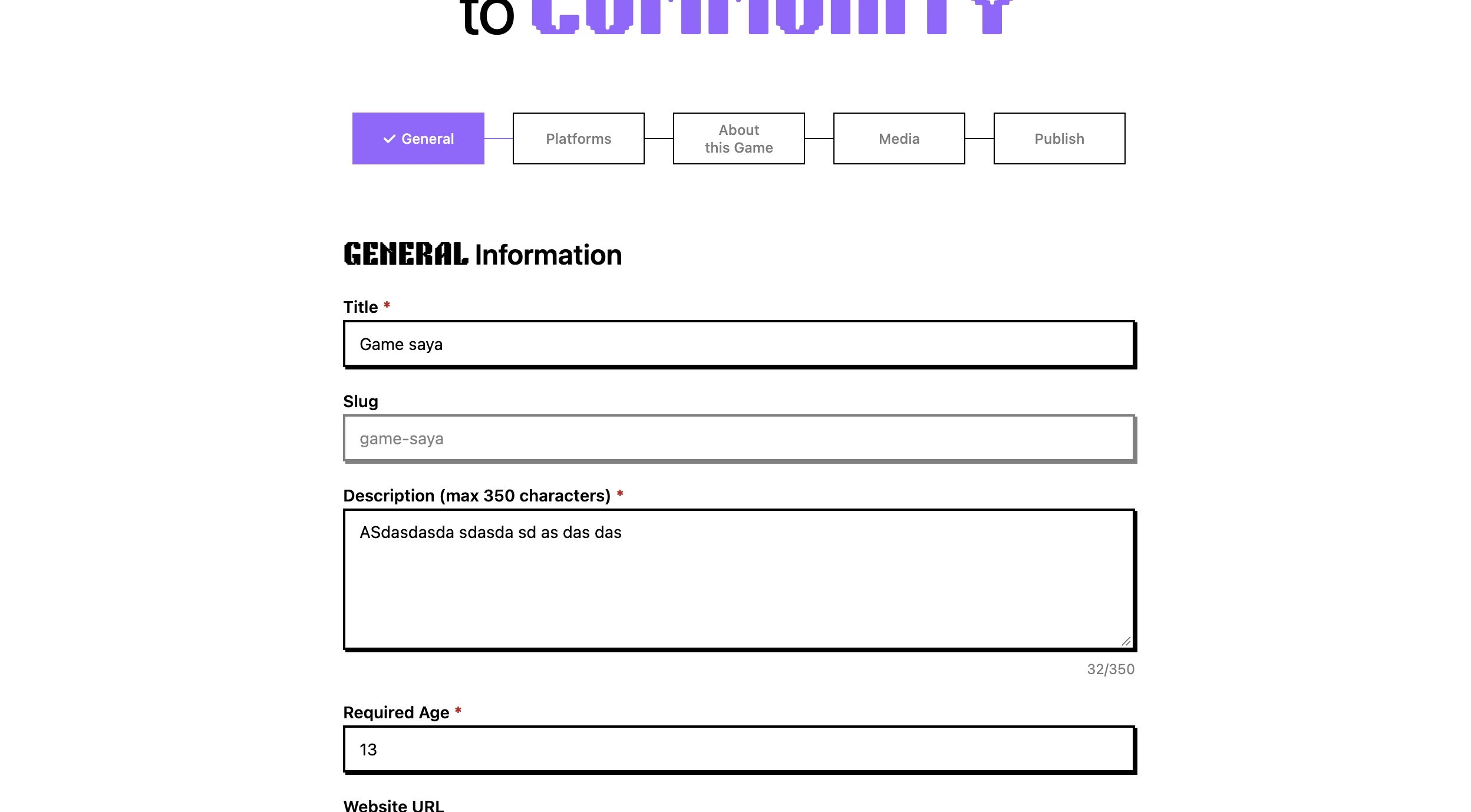
Edit general information

Edit general informationOn the General step (General Information), update Title, Description, Required Age, Website URL, Game Status, or any taxonomy list. Slug is generated from the title automatically and cannot be edited.
3

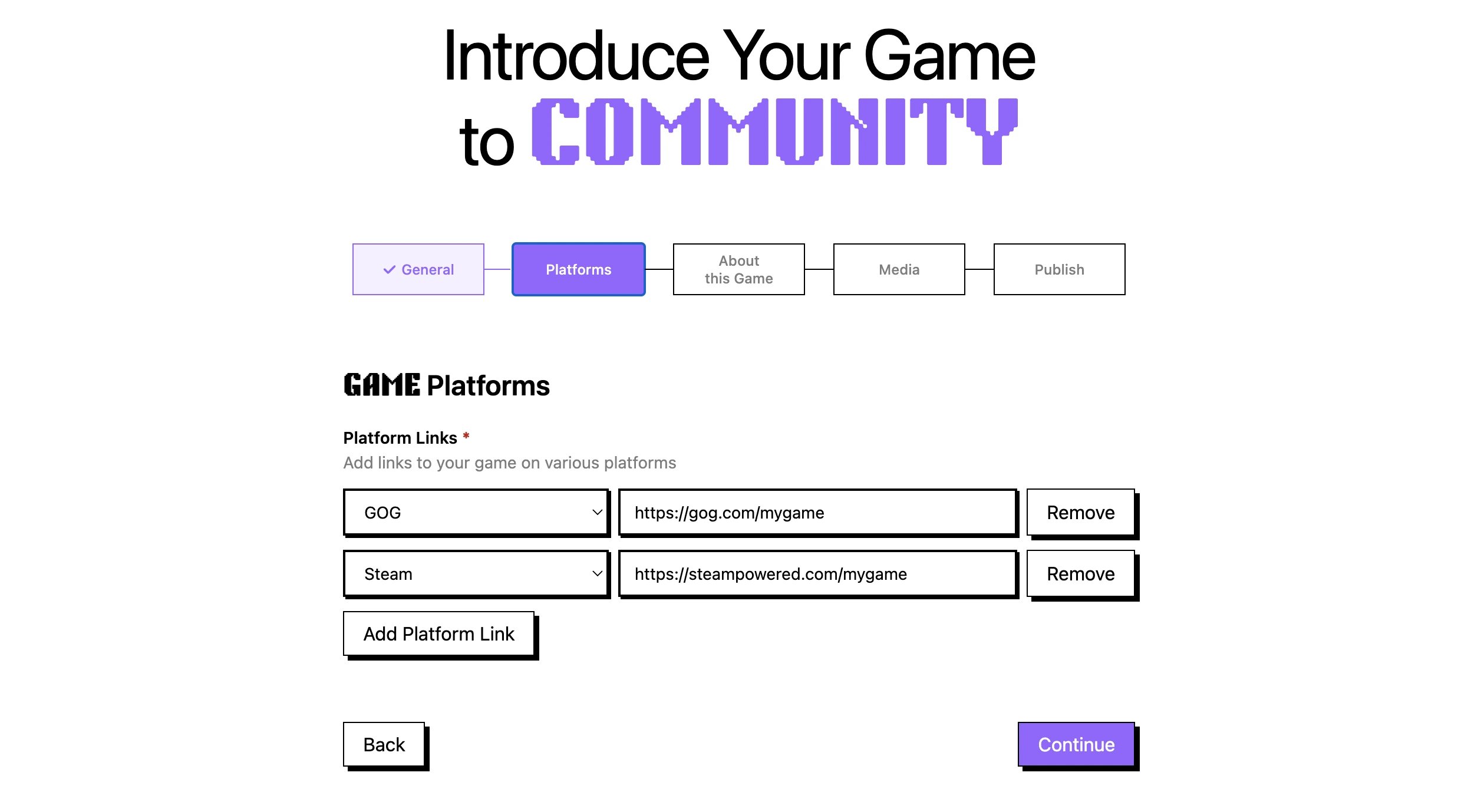
Update platform links

Update platform linksOn the Platforms step (Platform Links), change a platform in Select platform or edit its URL, click Add Platform Link to add another row, or click Remove to drop one. Keep at least one complete platform link.
4

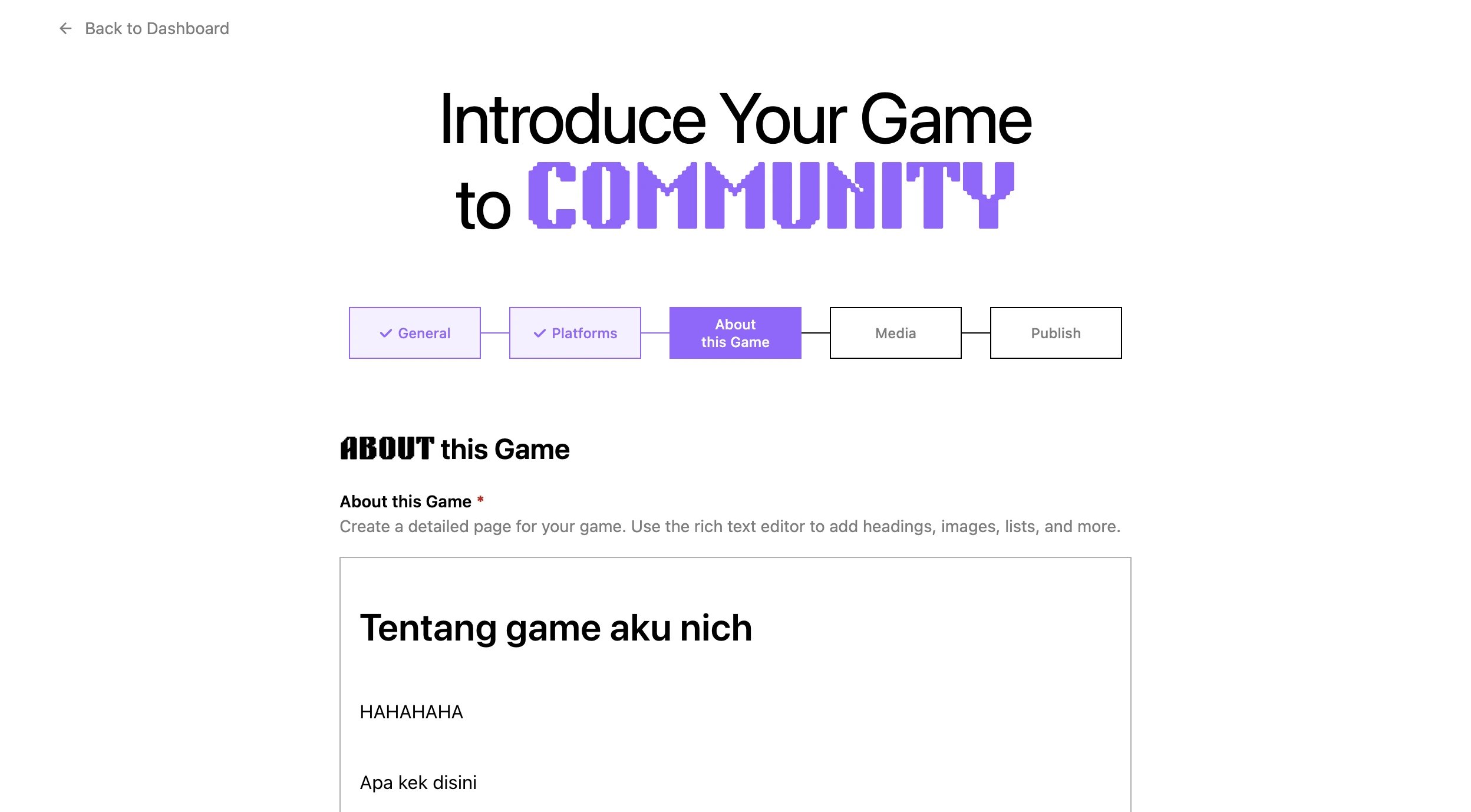
Update about this game

Update about this gameOn the About this Game step, revise your page in the rich text editor. The page must not be left empty.
5

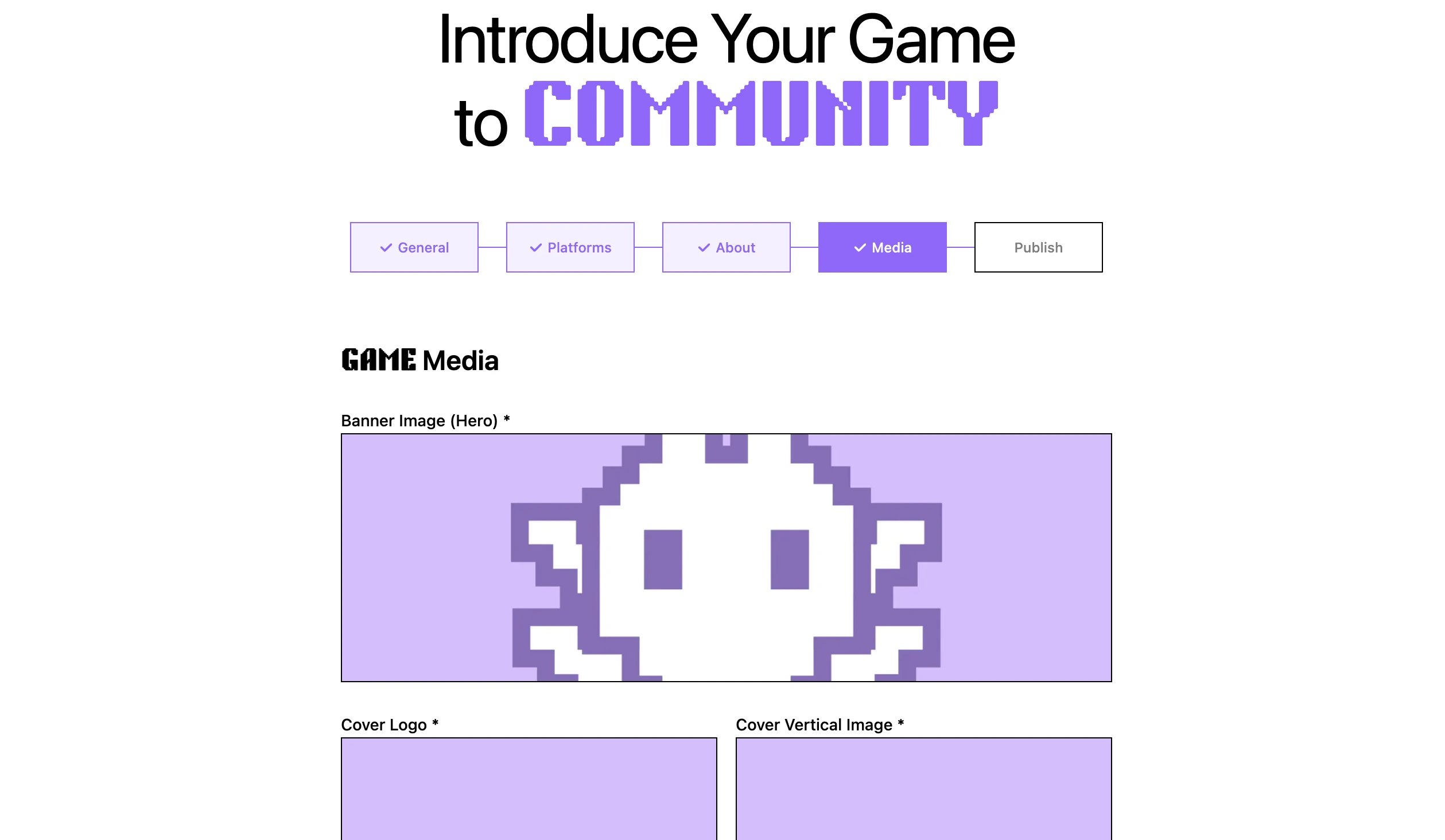
Replace game media

Replace game mediaOn the Media step (Game Media), upload new versions of Banner Image (Hero), Cover Logo, Cover Vertical Image, Cover Horizontal Image, or the preview gallery. Everything you save replaces the previous set — anything you remove stays removed, so keep every image and preview you still want.
6

Save your changes

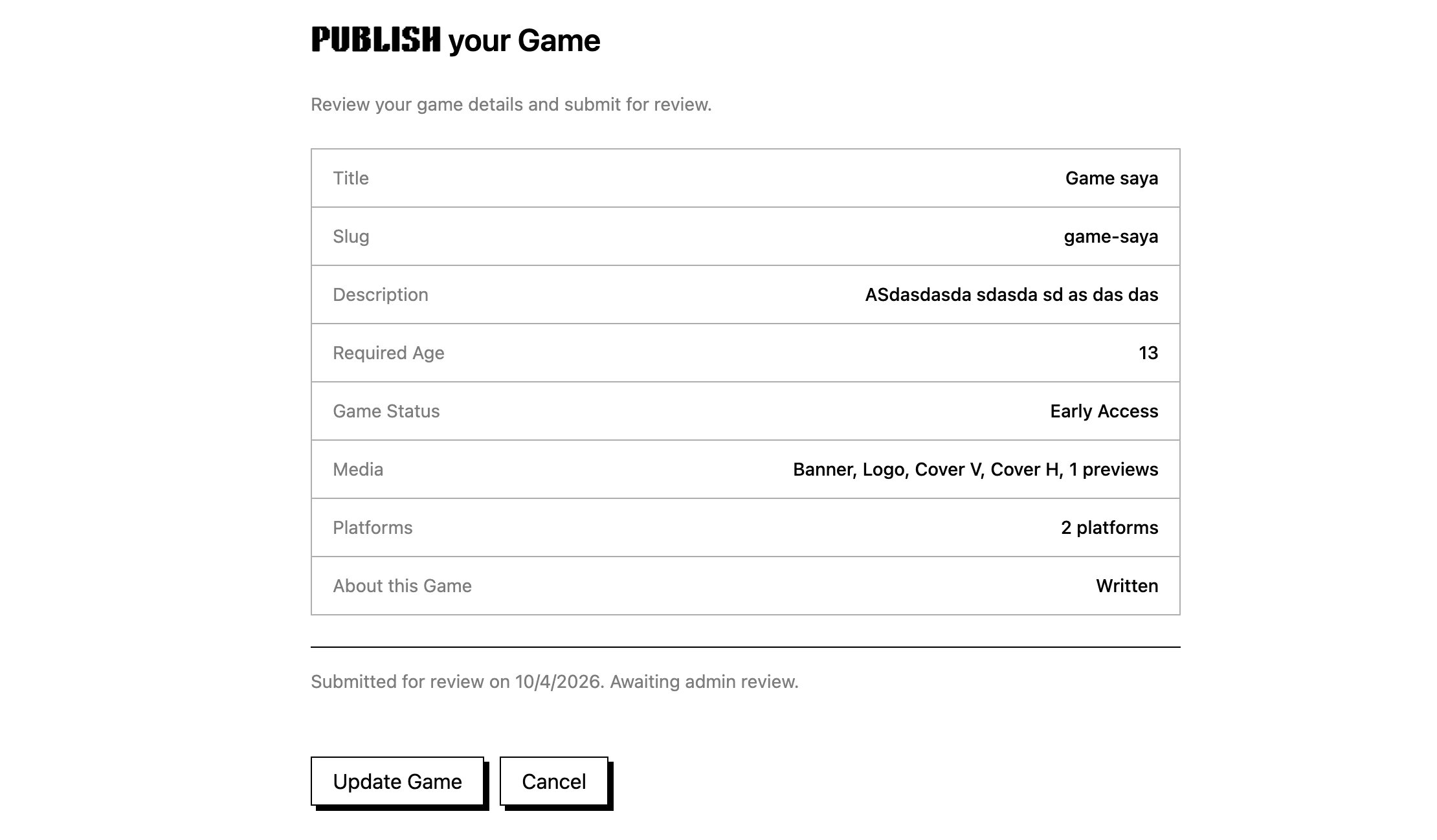
Save your changesClick Continue to move between steps. On a step you changed, the button reads Save & Continue and saving shows a Progress saved message. On the Publish step, check the summary and click Update Game to apply everything, or Cancel to leave without saving. The Publish step also tells you the current state: live games show your game is published, submitted games show the submission date while awaiting admin review, and rejected games show a Game Rejected note with the reason.

Replace rules

Media, previews, builds, and taxonomy are full-replace on save — what you submit becomes the complete new set. Files you upload while editing are held as drafts and attached to the game when you save. To change visibility, update Game Status on the General step.

Next step

Remove the game when needed — see Delete a game.