You create games from your developer dashboard. You need a developer profile before you start.
1

Open the create form
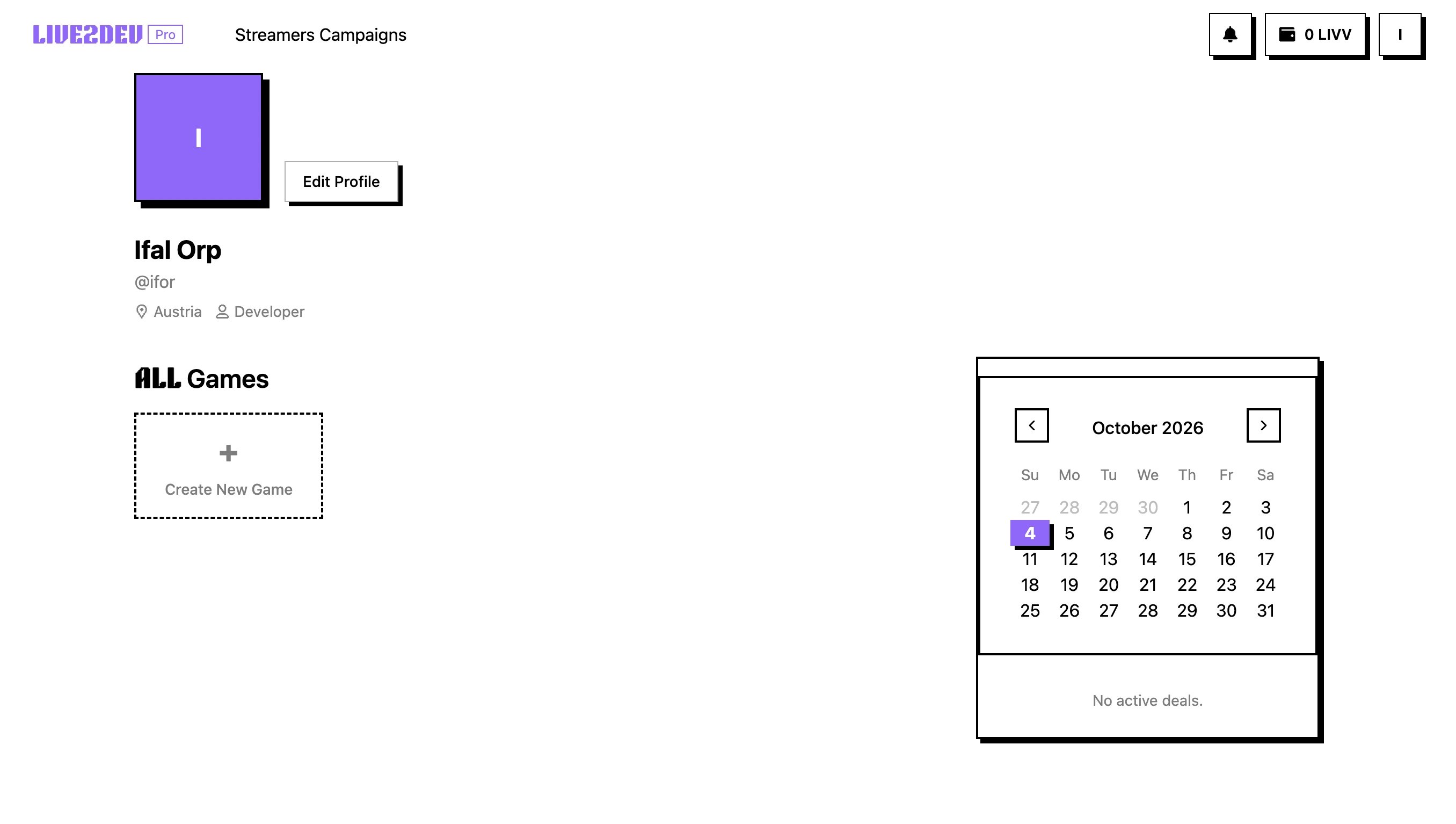
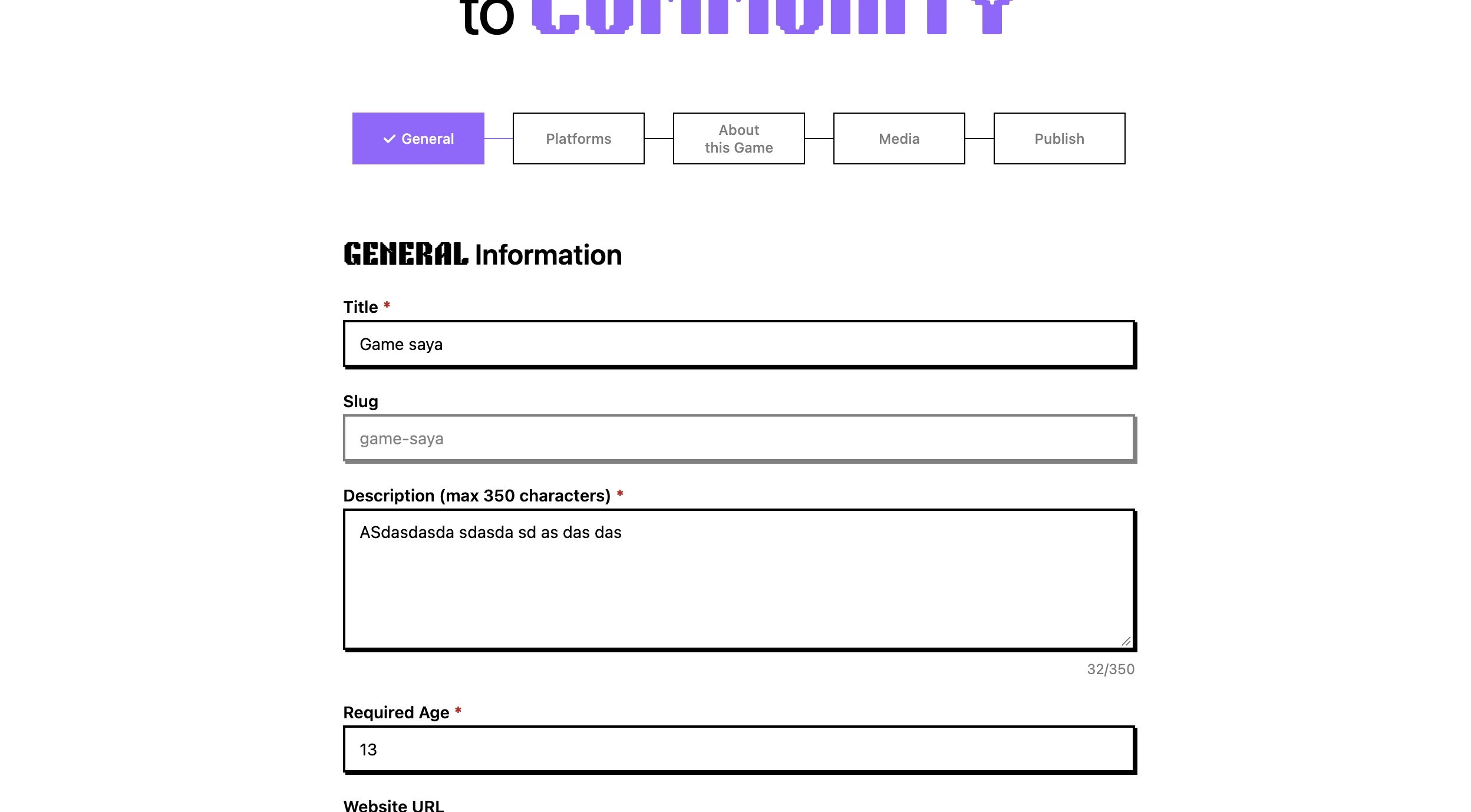
Open the create game formOpen pro.live2dev.com/dashboard → click Create New Game. This opens the game form at pro.live2dev.com/dashboard/create-game, which walks you through five steps: General, Platforms, About this Game, Media, and Publish.
2

Fill in general information

Fill in general informationWork through the General step (General Information). Fill Title first — Slug is generated from the title automatically and cannot be edited. Then fill Description, Required Age, Website URL, Game Status, and each taxonomy list (for example categories, genre, and theme). Click Continue to move on, or Back to return to the previous step.
3

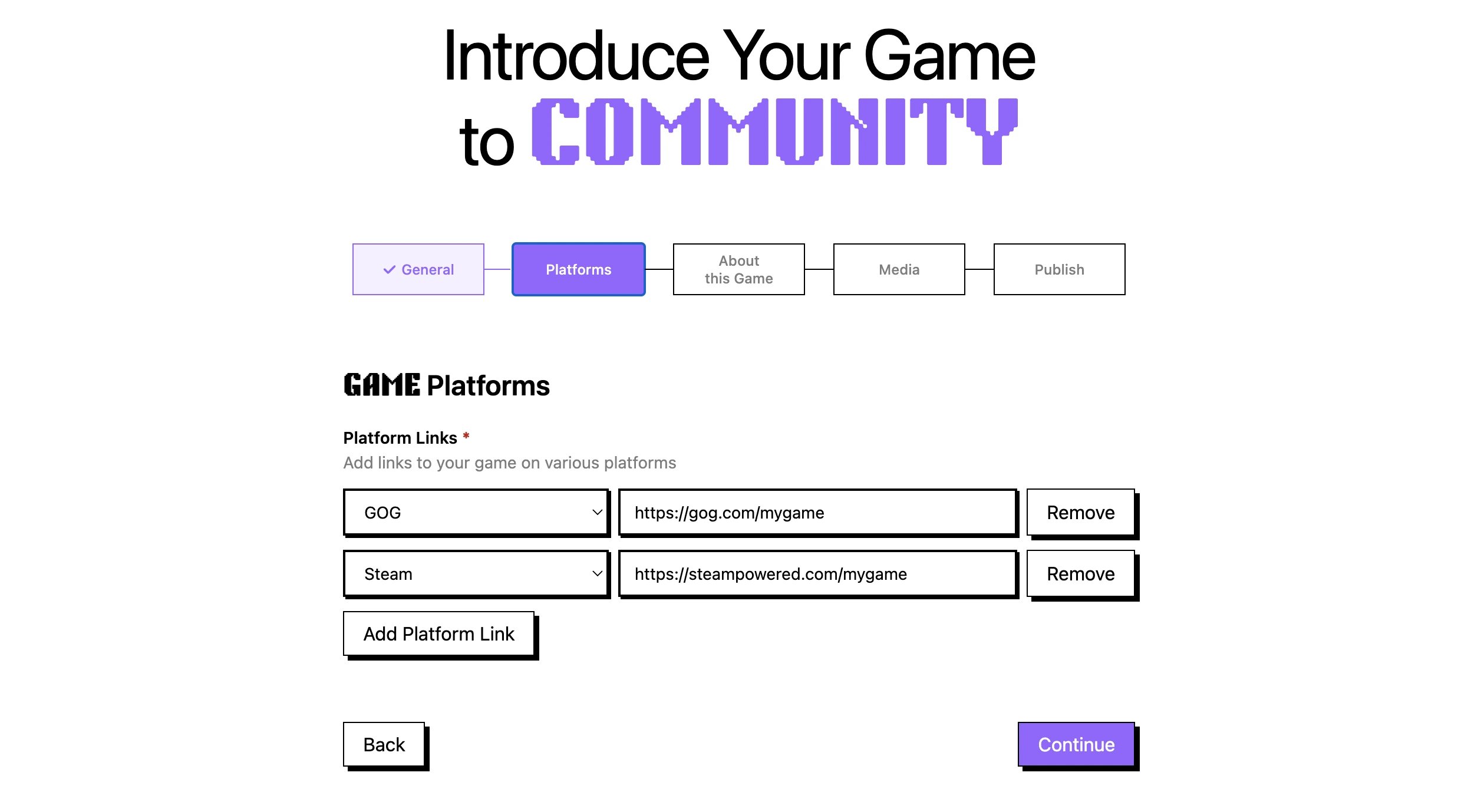
Add platform links

Add platform linksOn the Platforms step (Platform Links), choose a platform from Select platform, paste its URL starting with http:// or https://, and click Add Platform Link for each additional store or platform. Click Remove to drop a row you no longer need. You need at least one complete platform link.
4

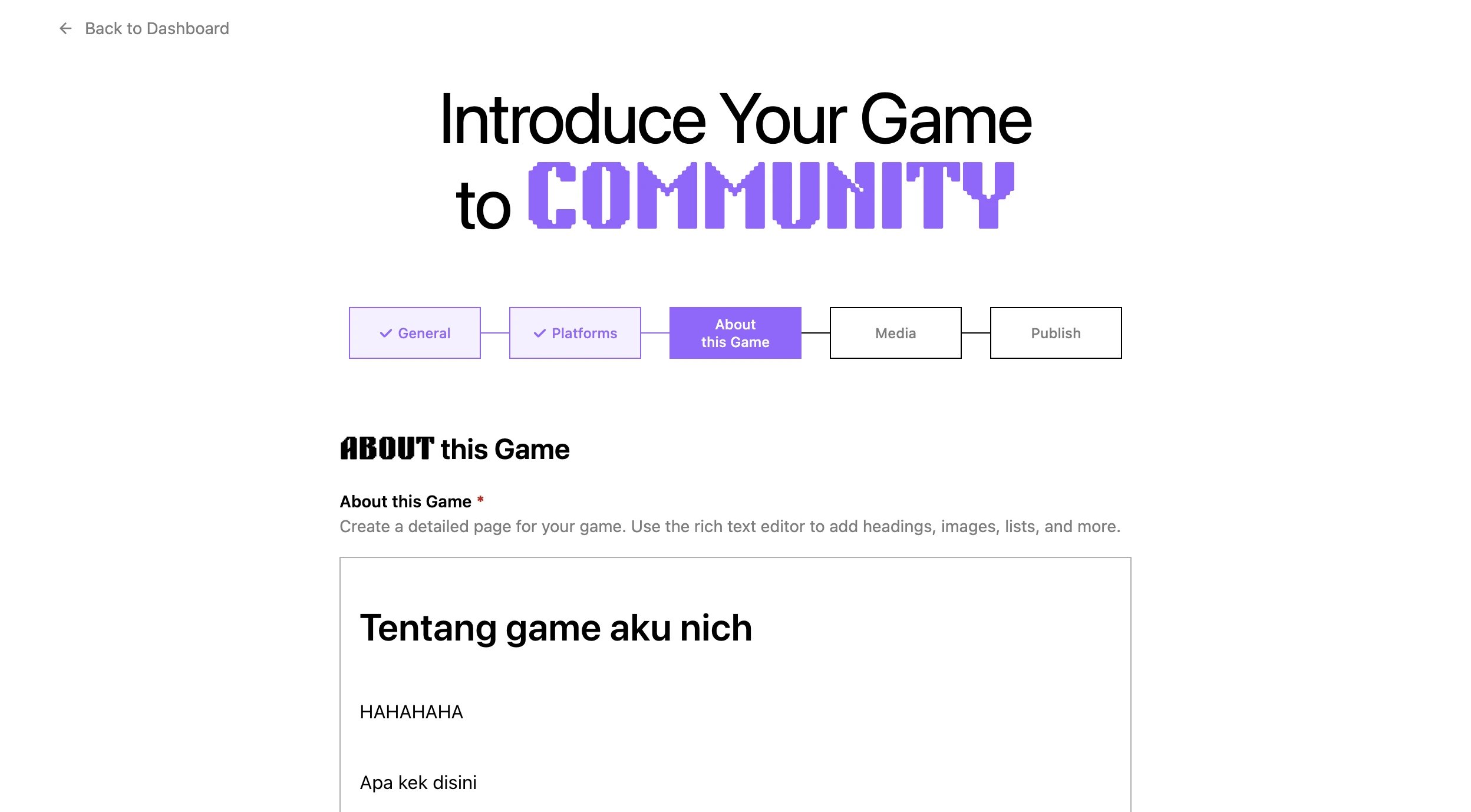
Write about this game

Write about this gameOn the About this Game step, use the rich text editor to write a detailed page with headings, images, and lists. This content is required before you can save.
5

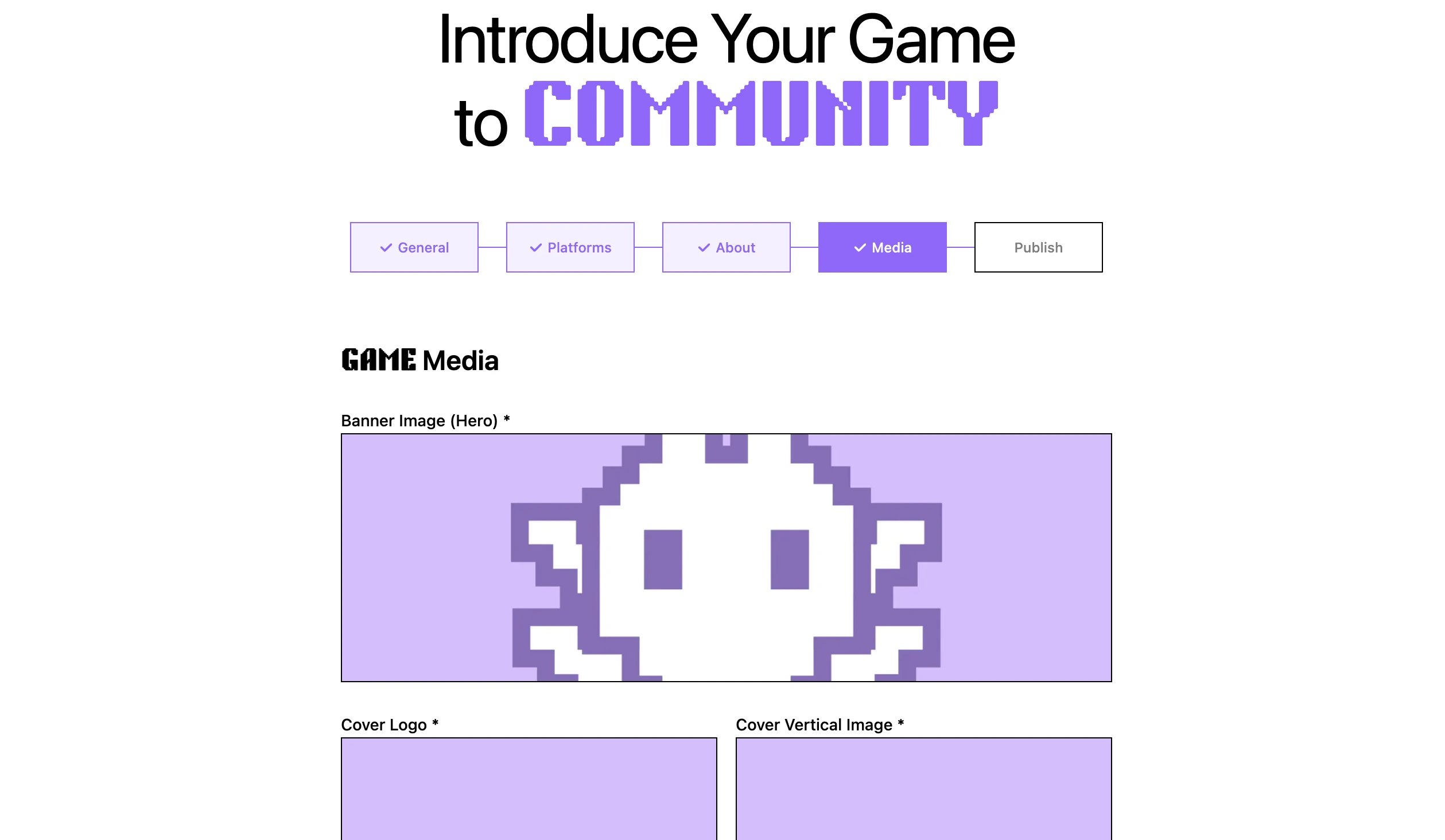
Upload game media

Upload game mediaOn the Media step (Game Media), upload all four required images: Banner Image (Hero), Cover Logo, Cover Vertical Image, and Cover Horizontal Image. Then add at least one preview image or video to the gallery (up to 10 items). Files you upload are held as drafts and attached to the game when you save.
6

Save or submit your game

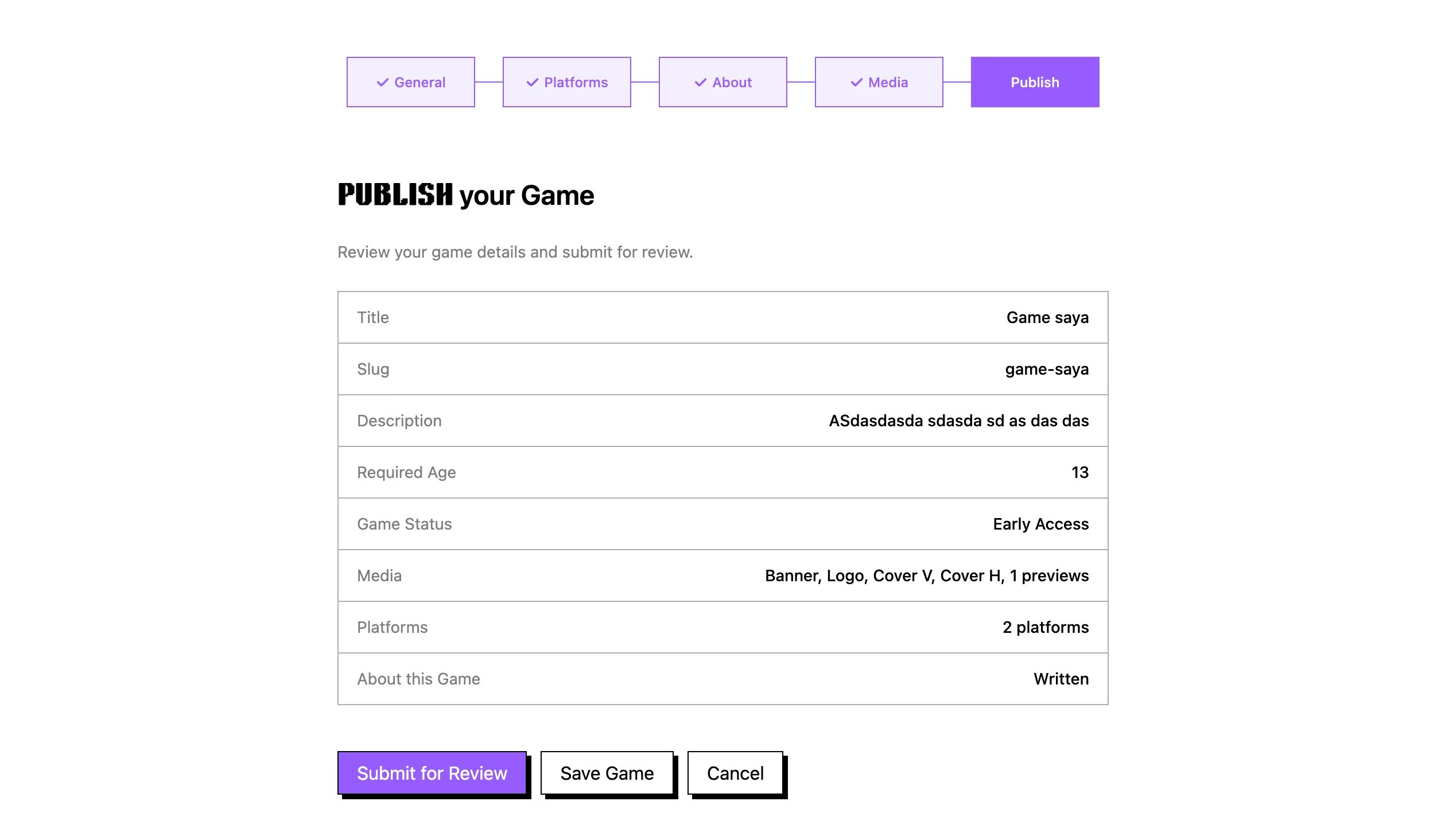
Save or submit your gameOn the Publish step, check the summary of your Title, Slug, Description, Required Age, Game Status, Media, Platforms, and About this Game. Click Save Game to save as a draft, or Submit for Review to send it straight to admin review. Click Cancel to leave without saving and return to the dashboard.
7

Check the pending badge

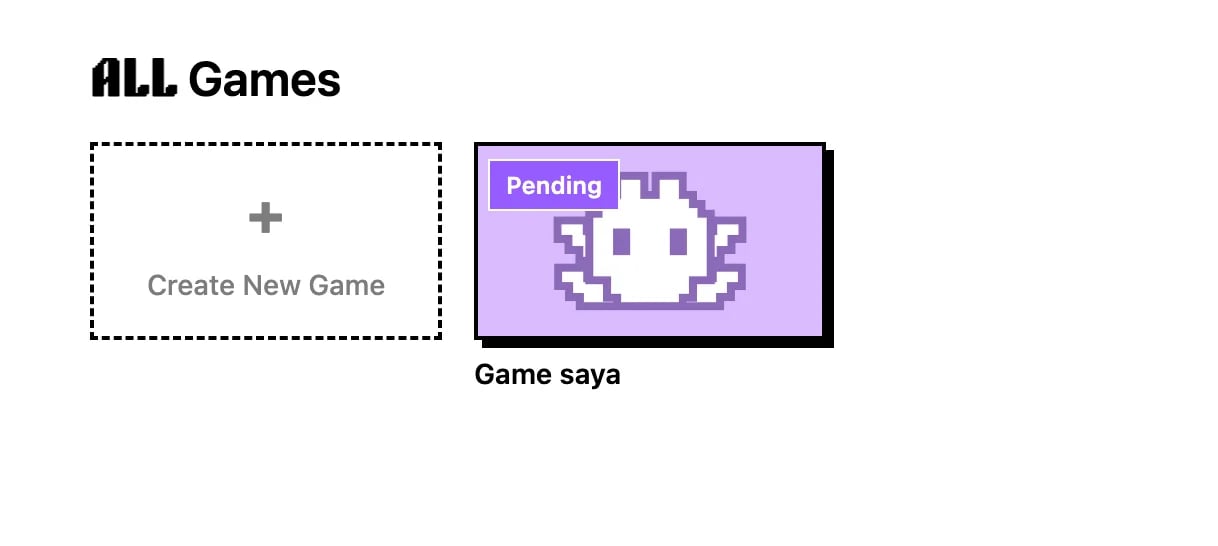
Game with pending badge on the dashboardBack on the dashboard, your submitted game shows a pending badge while admin review is in progress. You do not need to do anything while you wait.

Field rules

Keep the title to 1–200 characters and the description to 10–5000 characters. The slug uses lowercase letters with dashes and is created from the title for you. Set Required Age between 0 and 21. Upload all 4 required images, add at least 1 preview, and add at least 1 platform link. Pick at least 1 option in every taxonomy list: categories, genre, and theme allow up to 3 each, other lists allow up to 6. If an image has the wrong dimensions you see a warning message, not a failure — adjust the image and upload it again.

Next step

Create a campaign for your game — see Create a campaign.