> ## Documentation Index
> Fetch the complete documentation index at: https://docs.live2dev.com/llms.txt
> Use this file to discover all available pages before exploring further.
# Streamer applications
> Handle incoming streamer applications — accept, monitor, review, and complete
Handle incoming streamer applications to your game campaigns from pro.live2dev.com.
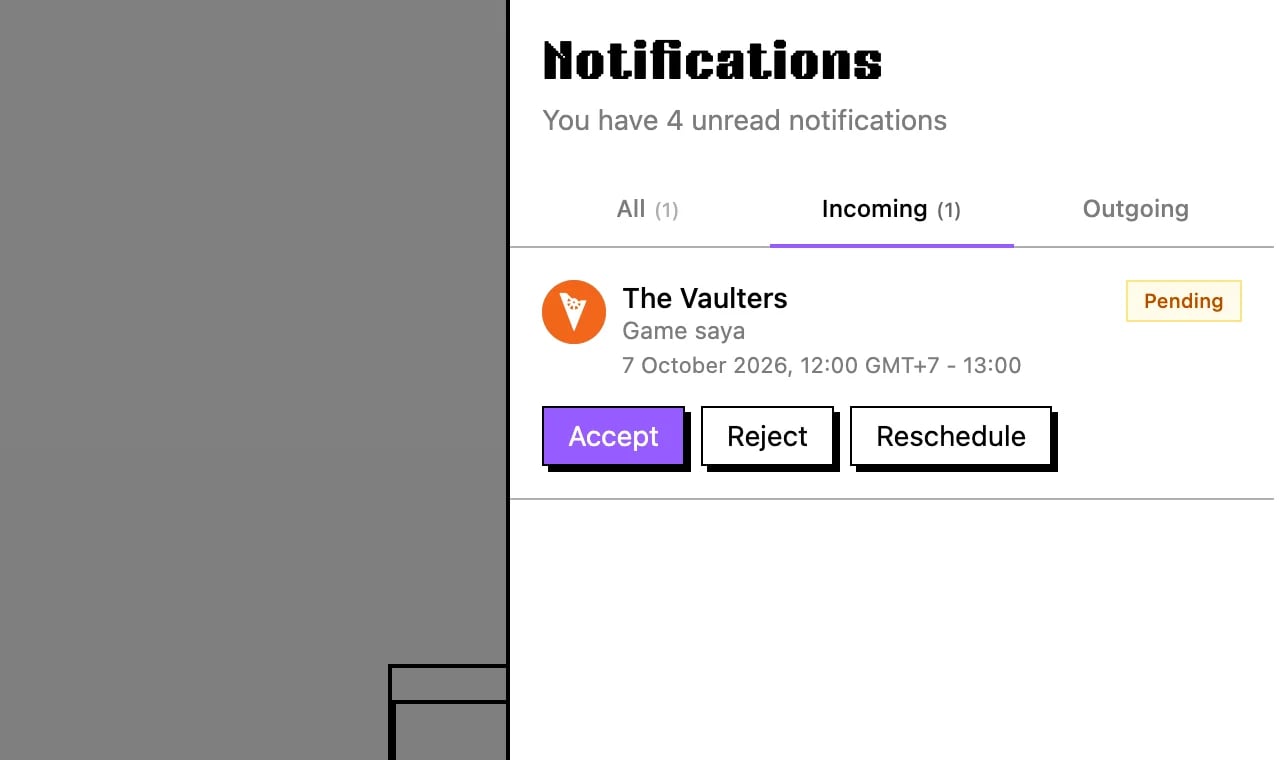 A streamer reaches out once you create a campaign — if you have no campaign yet, see [Create a campaign](/developers/create-campaign). Click the notification bell in the navbar and open the **Incoming** tab, where each application offers **Accept**, **Reject**, or **Reschedule**. If the streamer looks like a good fit for your game, press **Accept** to move the deal forward.
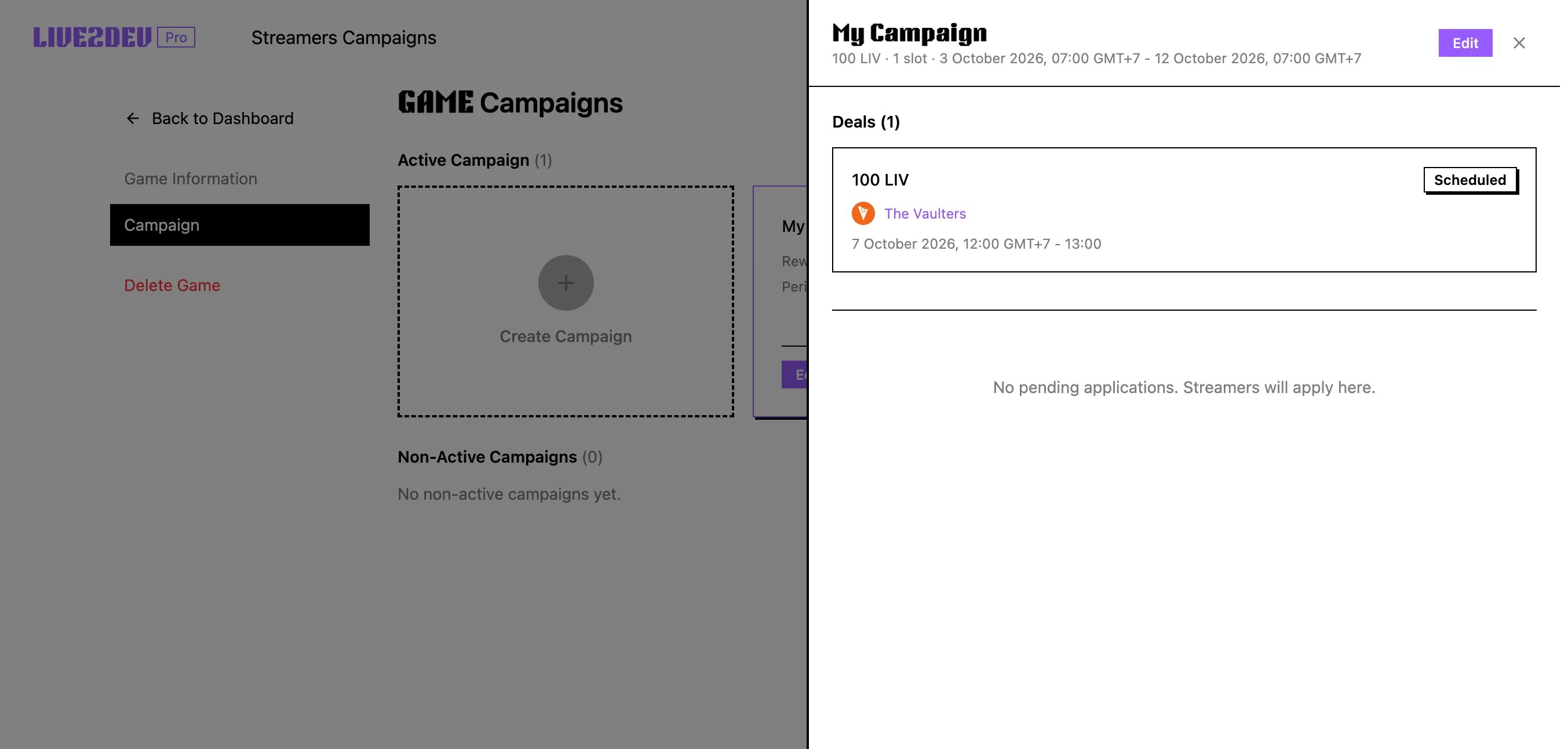 After accepting, go to your game campaign at pro.live2dev.com/dashboard/edit-game/\[gamekamu]/campaigns and click the campaign to open its details. You see the streamers you already have a deal with and can follow their progress there. Keep an eye on this page while the streamers prepare and upload their videos.
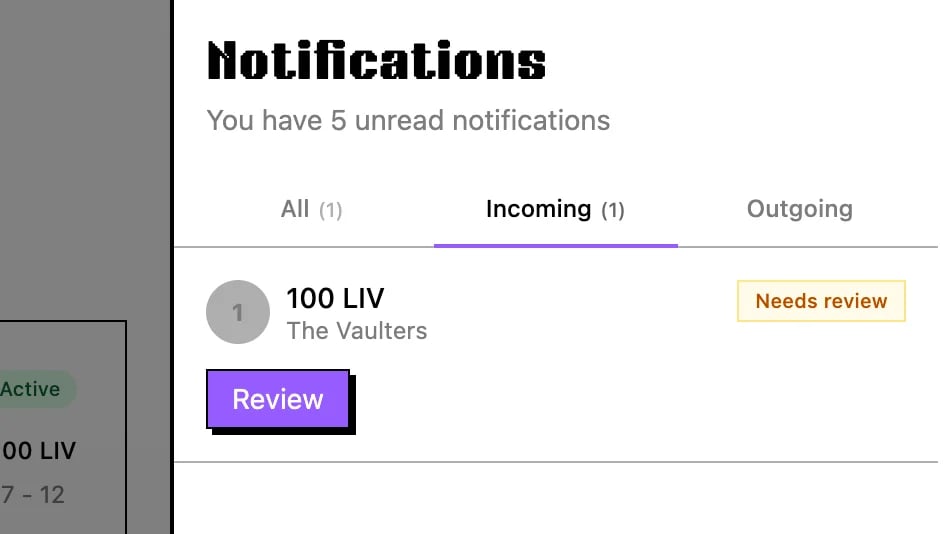 When the streamer finishes, their submission lands back in your notifications for review. Click the notification bell, open the **Incoming** tab, and press **Review** on the finished submission. This opens the streaming result so you can check what the streamer actually delivered.
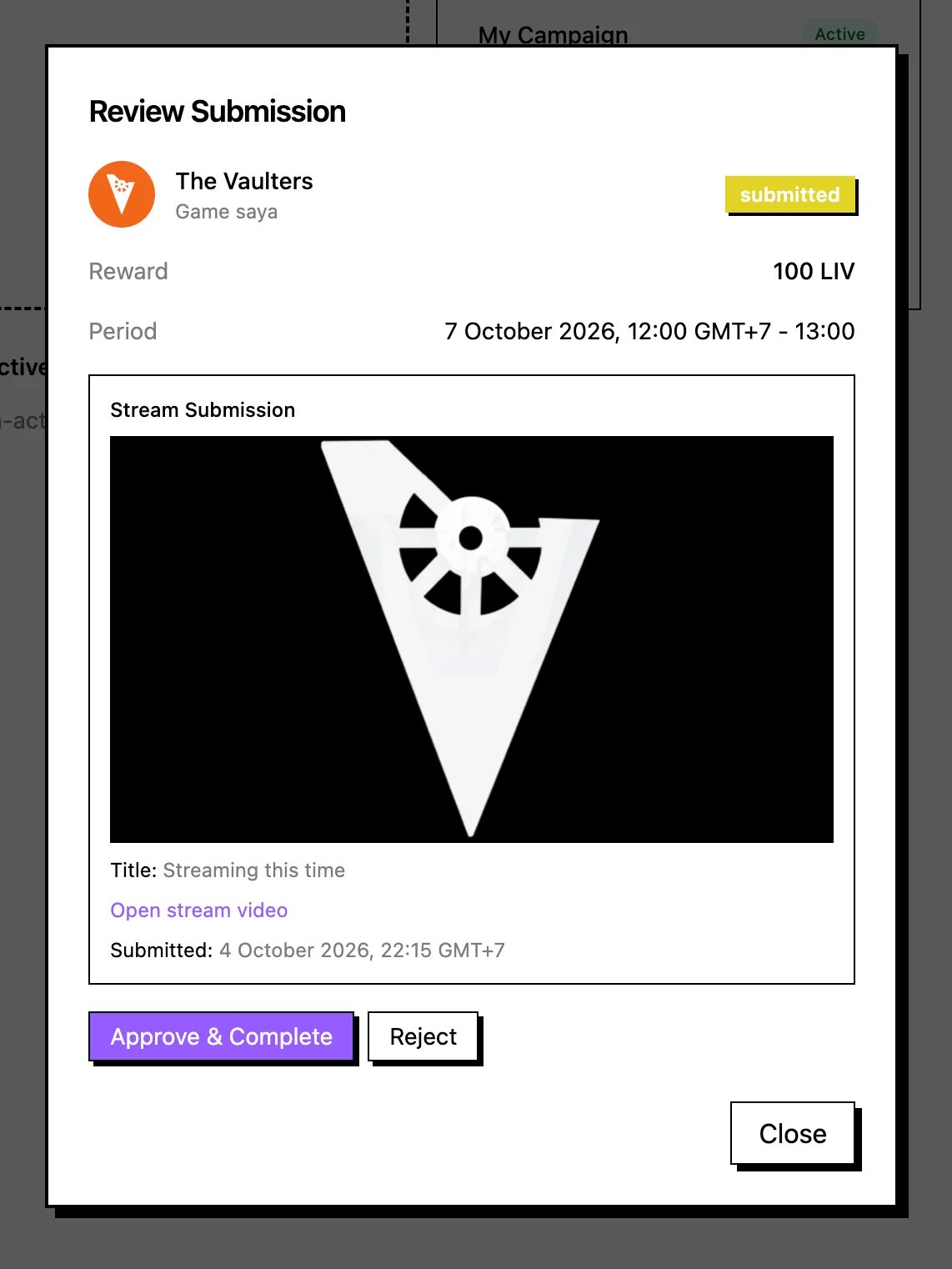 A modal appears showing the submission details for your review. Check the stream result carefully against what your campaign asked for. If everything looks good, click **Approve and complete** to finish the deal and release the payout.
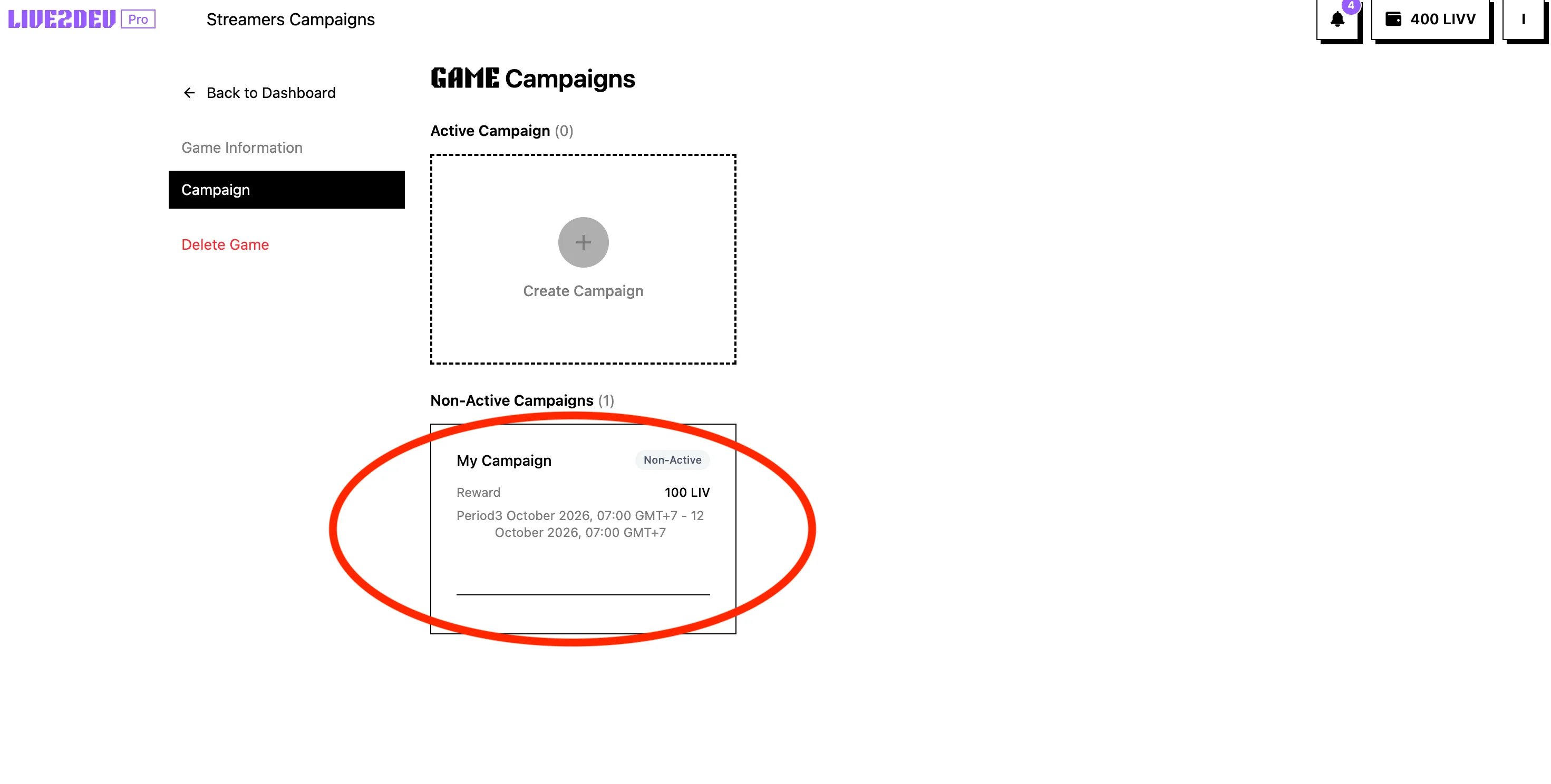 Check your campaign back on the campaigns page to see the updated slot usage. Each finished slot is marked as done as streamers complete their deals. When all slots are done, your game campaign automatically becomes non-active.
## Next step
* [Top up](/topup)
This documentation is built and hosted on [Mintlify](https://mintlify.com), a developer documentation platform.
Check your campaign back on the campaigns page to see the updated slot usage. Each finished slot is marked as done as streamers complete their deals. When all slots are done, your game campaign automatically becomes non-active.
## Next step
* [Top up](/topup)
This documentation is built and hosted on [Mintlify](https://mintlify.com), a developer documentation platform.